Unity's Official Plugins for Claude and ChatGPT Are Here: How to Set Them Up (And Why It's a Game-Changer)
Sep 20, 2026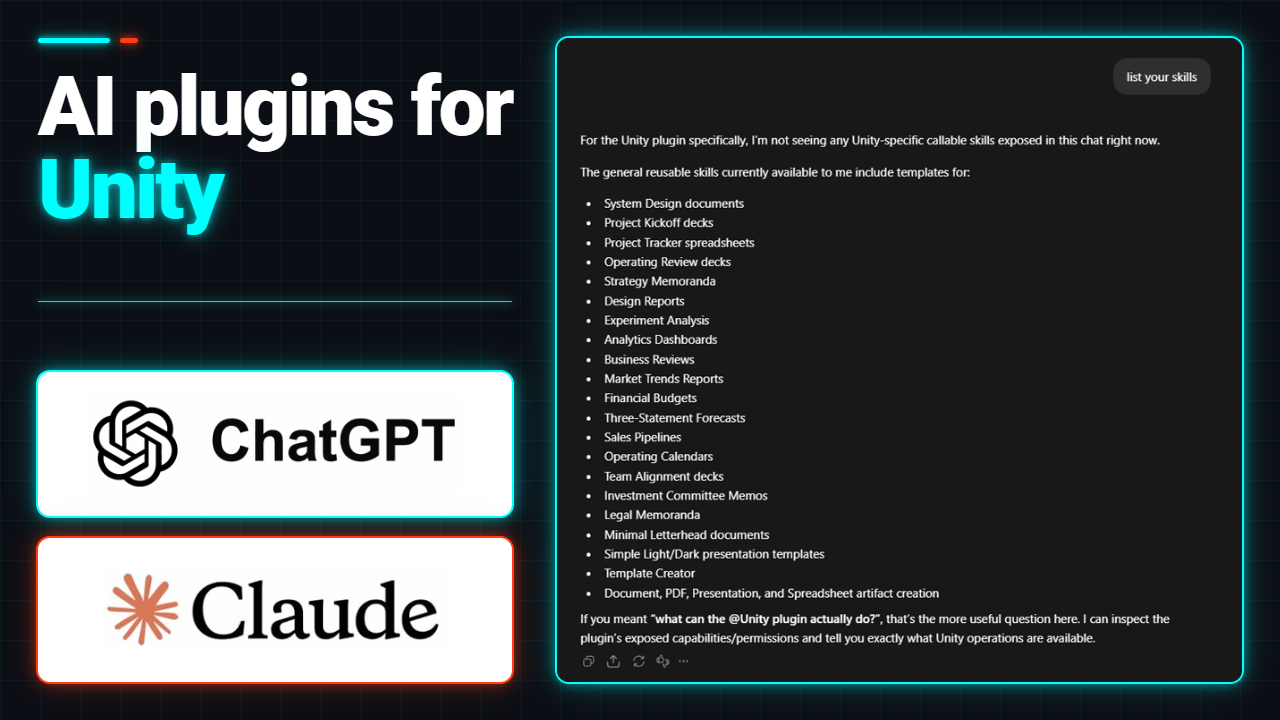
AI is a contentious tool in game development and well beyond it, and I understand why. I struggled with the idea of it taking jobs and flooding the world with slop. But I've come to see the massive potential it offers people who struggle to finish projects, and I think it can be a real game changer.
In my own work, I'm exploring ways to use it to build projects I've never had time for, ones that likely never would have been completed without help from AI. It's incredible how fast it works these days, and how good the output can be. Whether you hate it, love it, or don't know anything about it, it's in your best interest to check it out.
Here's my situation: I have four kids, a full-time job, and a 2 to 3 hour daily commute. There just isn't time in my life to do more, so anything that helps me finish what I start gets my attention.
That's why I'm excited about what happened this month. Unity now has official plugins for Claude Code and OpenAI's Codex. This guide covers how to set up each one, what they actually do, and where they help most.
1. What the Official Unity Plugins Actually Do
Unity released its official plugin for Claude Code on September 9 and its plugin for Codex on September 16. Both are first-party, written and maintained by Unity's own engineers, and both work with Unity 6 and newer.
Here's the problem they solve. A general-purpose AI answers Unity questions from the average of everything ever written about Unity, including a decade of forum threads and tutorials written for engine versions that no longer ship. The code often compiles, but it isn't how the engine is meant to be used. The plugins fix that by giving the agent skills: step-by-step guidance written by the Unity teams that own each feature.
What you get:
- About 30 skills at launch: 29 for Claude Code and 31 for Codex, with more on the way.
- Coverage of the parts of the job nobody puts in tutorials: UI Toolkit and uGUI, 2D and tilemaps, URP and Shader Graph, audio mixers, navigation, physics, in-app purchases, multiplayer services, and localization.
- Guided project setup: a new-project skill that installs the Editor, then creates the project with source control and packages. It sets up the project, not your gameplay.
- The Unity CLI: so the agent can manage editors, packages, and builds from the terminal. The Claude Code plugin also includes Unity's own MCP server for live Editor control.
The difference from pasting questions into a chat tab is that the agent works from Unity's own instructions for each job instead of guessing from whatever it picked up elsewhere.
2. Setting Up Claude in Unity
The Claude plugin installs into Claude Code, either from your terminal or from the Claude desktop app. You'll need Claude Code installed and a Unity 6+ project.
- In Claude Code, add Unity's marketplace:
/plugin marketplace add Unity-Technologies/unity-agent-plugin- Install the plugin:
/plugin install unity@unity-agent-plugin- Claude Code will ask you to choose a scope. User scope makes the plugin available in all your projects, which is the easiest choice if you work on more than one.
- Verify it: type
/unity:to see the list of Unity skills, or/pluginto confirm thatunityis installed and enabled.
Prefer the desktop app? In the Claude desktop app, open Plugins, choose Browse, search for Unity, and install it. If it doesn't show up, add the marketplace by URL (https://github.com/Unity-Technologies/unity-agent-plugin), sync, and try again. You can also find it in the Claude plugin directory.
No per-project configuration and nothing to copy between machines. Start with something small and low risk, and commit to git first.
3. Setting Up ChatGPT (Codex) in Unity
The OpenAI plugin installs into Codex. You can install it with one click from the OpenAI plugin directory, or with two commands:
- Add Unity's marketplace:
codex plugin marketplace add Unity-Technologies/unity-agent-plugin- Install the plugin:
codex plugin add unity@unity-agent-plugin- Start a new Codex session and type
/unity:to see the skills, or runcodex plugin listto confirm thatunityis installed and enabled.
💡 Heads up on versions
These plugins are brand new, and Unity is adding skills as it goes. If a command doesn't match what's above, check Unity's official docs for Claude Code and Codex. They're the source of truth.
Weekly Unity Dev Notes
Practical Unity tips and dev notes, plus first access to new tools like ORDO. No spam, unsubscribe anytime.
4. Where This Actually Helps
The skills matter most on jobs that have one right way to be done and a lot of wrong-but-plausible ways:
- Setup and pipeline work: sprite atlases built through a prebuild pipeline, audio sources routed into the right mixer groups, localization tables, in-app purchase flows.
- Rendering: reviewing a URP renderer feature on the Render Graph API, the kind of thing that reads as correct and never actually runs.
- Debugging: there's a physics skill for the classics, like collision callbacks that never fire or objects passing through each other.
- Systems you don't touch every week: navigation, multiplayer services, and other areas where it's easy to forget the current best practice.
To be honest about the limits, Unity's own docs say the plugin makes little difference for simple uGUI work compared to doing it by hand. This isn't magic. It's most useful when the job is one you keep putting off.
That's the real value for me: less time on the mechanical parts of Unity, more time on game feel, design decisions, and the stuff that makes your game yours.
5. The Part Nobody Warns You About
Skills teach the agent how a job should be done, but speed still cuts both ways. Anything that can create files and change your project in seconds can also scatter folders, duplicate scripts, and drop assets in odd places just as fast, and faster than you can review.
💡 Why project structure matters more now, not less
When you're the only one writing code, a messy project is annoying. When an AI is generating files into your project much faster than you would, a messy project becomes a liability, because the AI makes decisions based on whatever inconsistent structure it finds. This is the exact problem I built ORDO to solve: one click to enforce a clean, consistent folder structure, and a Project Health Monitor that flags the mess before it snowballs. Keep your project clean and the AI stays a lot easier to trust.
A few ground rules worth following:
- Always review a diff before accepting AI-written code, especially physics, math, and anything touching save data.
- Keep the AI scoped to one feature or bug per prompt. Broad "clean up my whole project" requests are where things go sideways.
- Commit to git before a big AI-assisted change, not after. It's your undo button.
6. Bottom Line
Treat these plugins like a fast, very literal junior developer who now has Unity's own playbook: point them at specific problems, review everything they touch, and keep your project organized so they have a clean foundation to work from. If you've been on the fence about AI, the low-risk way to start is one small job you've been putting off. See what happens.
// When you are ready
Here are 3 ways to go further:
Faktory Studios. © 2026 All rights reserved.
Join the Local Space Newsletter
Weekly Unity dev tips, tools, and short lessons to help you build faster and ship real projects.
We hate SPAM. We will never sell your information, for any reason.