How to Fix Unity Animations Not Playing (Beginner Guide + Common Causes)
Dec 09, 2025
If your Unity animations aren't playing, your character is stuck in Idle, or transitions don't seem to fire, you're not alone. This is one of the most common issues new Unity devs run into.
The good news? Almost every "animation not playing" problem in Unity comes from a short list of fixable issues. Once you know how to debug them, you can usually solve animation problems in a few minutes.
In this guide, we'll walk through the most common causes and show you how to fix them step-by-step.
Table of Contents
- 1. Check That the Animator Component Is Set Up Correctly
- 2. Make Sure Animator Parameters Match Your Script
- 3. Fix Missing or Incorrect Animator Transitions
- 4. Check Apply Root Motion
- 5. Verify Animation Import Settings
- 6. Make Sure Animation Isn't on the Wrong Layer
- 7. Fix Script Errors That Stop Animation Logic
- 8. Use the Animator Window to Debug in Real Time
- 9. Quick Troubleshooting Checklist
- 10. Watch the Animation Tutorial
1. Check That the Animator Component Is Set Up Correctly
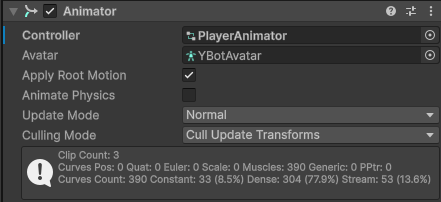
Start with the basics. On your character GameObject, make sure the Animator is correctly assigned.
- Does the object have an Animator component?
- Is the Controller field assigned to an Animator Controller asset?
- Does the Avatar field look valid (not empty or “None”)?
- Is the GameObject active in the Hierarchy?
If the Animator Controller is missing, Unity literally has no state machine to play. Assigning a controller is the first step.
2. Make Sure Animator Parameters Match Your Script
Next, check the connection between your code and the Animator. The most common beginner mistake is a mismatch between Animator parameters and the values your script is trying to set.
Common problems:
- The parameter name in your script doesn't match the Animator (case-sensitive).
- The wrong parameter type is used (setting a float when the Animator expects a bool).
- The parameter is never updated at runtime.
- The script isn't on the same GameObject as the Animator.
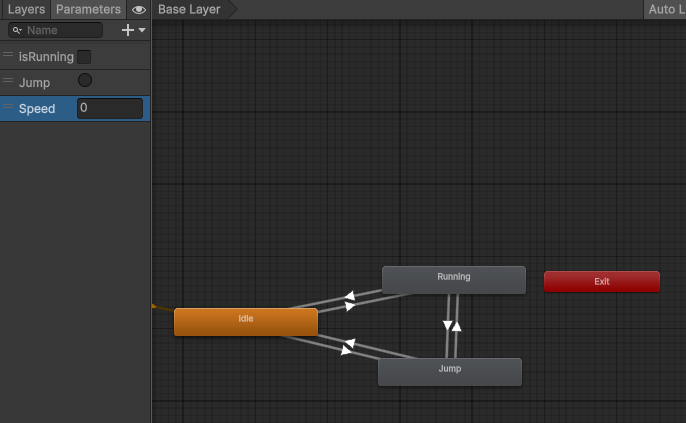
Here’s an example of correctly setting a Speed parameter in the Animator:
using UnityEngine;

public class PlayerMovement : MonoBehaviour
{
    private Animator anim;
    private Vector2 moveInput;

    private void Awake()
    {
        anim = GetComponent<Animator>();
    }

    private void Update()
    {
        float speed = moveInput.magnitude;
        anim.SetFloat("Speed", speed);
    }

    public void SetMoveInput(Vector2 input)
    {
        moveInput = input;
    }
}
Double-check that the parameter name in the Animator is exactly Speed, and that it's typed as a Float. Unity is case-sensitive, so "speed" ≠ "Speed".
3. Fix Missing or Incorrect Animator Transitions
Even if your parameters are correct, animations won’t play if the transitions between states aren’t set up correctly.
Things to check in your transitions:
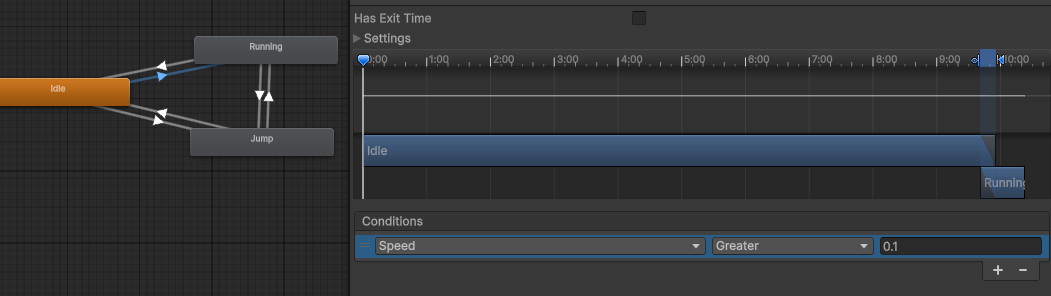
- Is there a transition from Idle → Walk/Run (or the state you expect)?
- Are the Conditions using the right parameter and threshold?
- Is Has Exit Time disabled when you want instant transitions?
- Is the Transition Duration reasonable (0.05–0.1 works for snappy movement)?
For example, if you require Speed > 0.1 to enter the Run state but your code only sets Speed to 0.05, the transition will never fire.
4. Check Apply Root Motion
If the animation appears to play but your character doesn’t move in the world, the Apply Root Motion setting may be the issue.
- For animations that include authored movement, turn Root Motion ON.
- For CharacterController or Rigidbody movement controlled by script, turn Root Motion OFF.
Beginners often end up enabling root motion while also trying to move the character manually — resulting in frozen or jittery motion.
5. Verify Animation Import Settings
If your animation clip was imported incorrectly, it may not play properly (or at all).
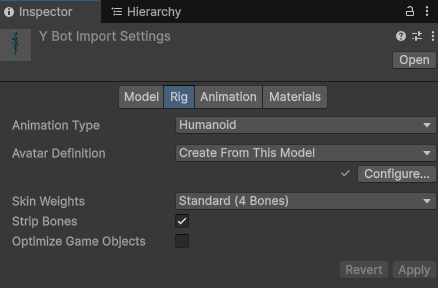
Rig tab:
- Animation Type: Usually Humanoid for characters.
- Avatar Definition: “Create From This Model” or a valid avatar reference
 .
.
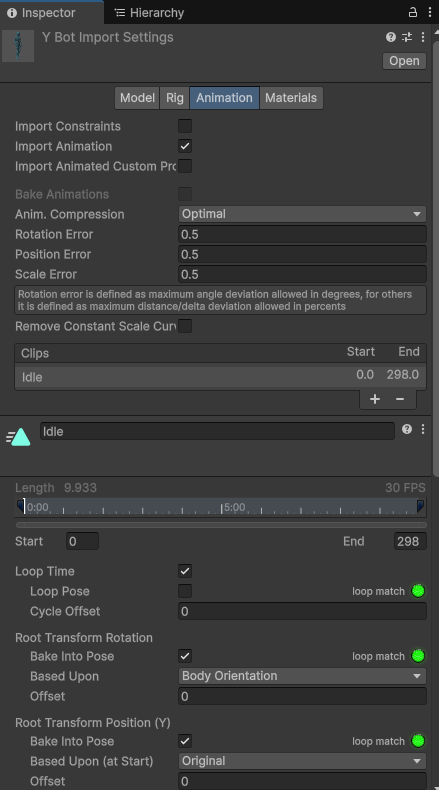
Animation tab:
- Is the correct Clip selected?
- Is Loop Time enabled if needed?
- Are the Root Transform settings correct?
- Is the clip marked as Legacy? (Legacy clips cannot be used with Animator Controllers.)
6. Make Sure the Animation Isn't on the Wrong Layer or Masked Out
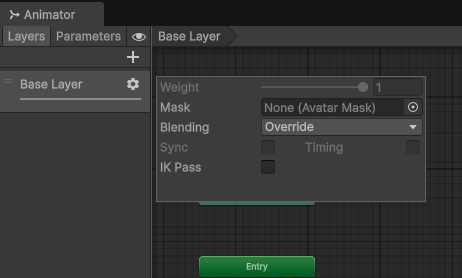
If you're using Animator layers, it's possible that your animation is playing — but on a layer you can't see or that has zero influence.
- Check that the layer weight is 1.0.
- Verify any Avatar Masks include the bones you want to animate.
- Check whether the layer is set to Override or Additive.
A layer with weight 0 effectively hides any animation playing there.
7. Fix Script Errors That Stop Animation Logic
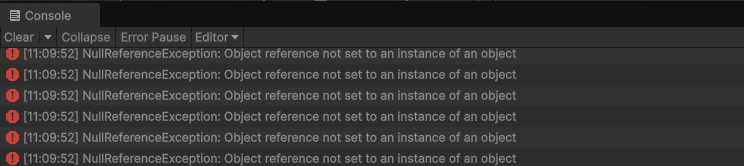
If Unity’s Console shows errors, your animation logic may never run — meaning parameters never update and transitions never occur.
For example, a missing Animator reference:
using UnityEngine;

public class PlayerAnimator : MonoBehaviour
{
    private Animator anim;

    private void Awake()
    {
        anim = GetComponent<Animator>();
        if (anim == null)
        {
            Debug.LogError("Animator component not found on Player!");
        }
    }

    private void Update()
    {
        if (anim == null) return;

        // Animation logic here...
    }
}
If anim is null and you call anim.SetFloat (or similar), the code fails — and animation stops entirely.
8. Use the Animator Window to Debug in Real Time
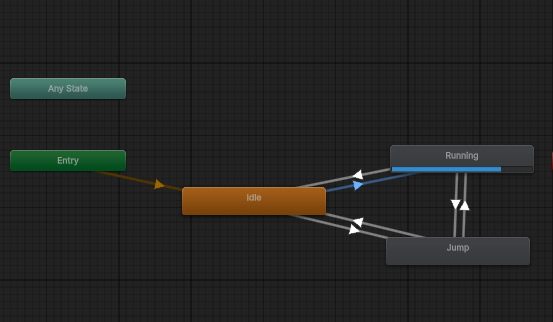
The Animator window is one of Unity’s most useful debugging tools. It shows which state is currently active during gameplay.
- Open Window → Animation → Animator
- Press Play
- Select your character
- Watch the highlighted active state
If the character stays in Idle, your transitions or parameters need attention. If the state changes but the character doesn't animate, you may have import or rig issues.
9. Quick “Animation Not Playing” Troubleshooting Checklist
- Animator component assigned?
- Animator Controller set?
- Parameters exist and match in name and type?
- Transitions configured correctly?
- No errors in the Console?
- Appropriate Root Motion setting?
- Correct animation import settings?
- Animator layers weighted correctly?
- Animator window shows expected state changes?
Go through this list — in most cases, you'll find the cause quickly.
See It In Action: Animation Tutorial
Watching animations being set up step-by-step can make everything much clearer.
// When you are ready
Here are 3 ways I can help you level up your game dev journey:
Local Space is a production of Faktory Studios.
© 2024 All rights reserved.
Join the Local Space Newsletter
Weekly Unity dev tips, tools, and short lessons to help you build faster and ship real projects.
We hate SPAM. We will never sell your information, for any reason.