ORDO: One Set of Rules for Your Whole Unity Team (Synced Policies, Readiness Checks, and CI)
Sep 27, 2026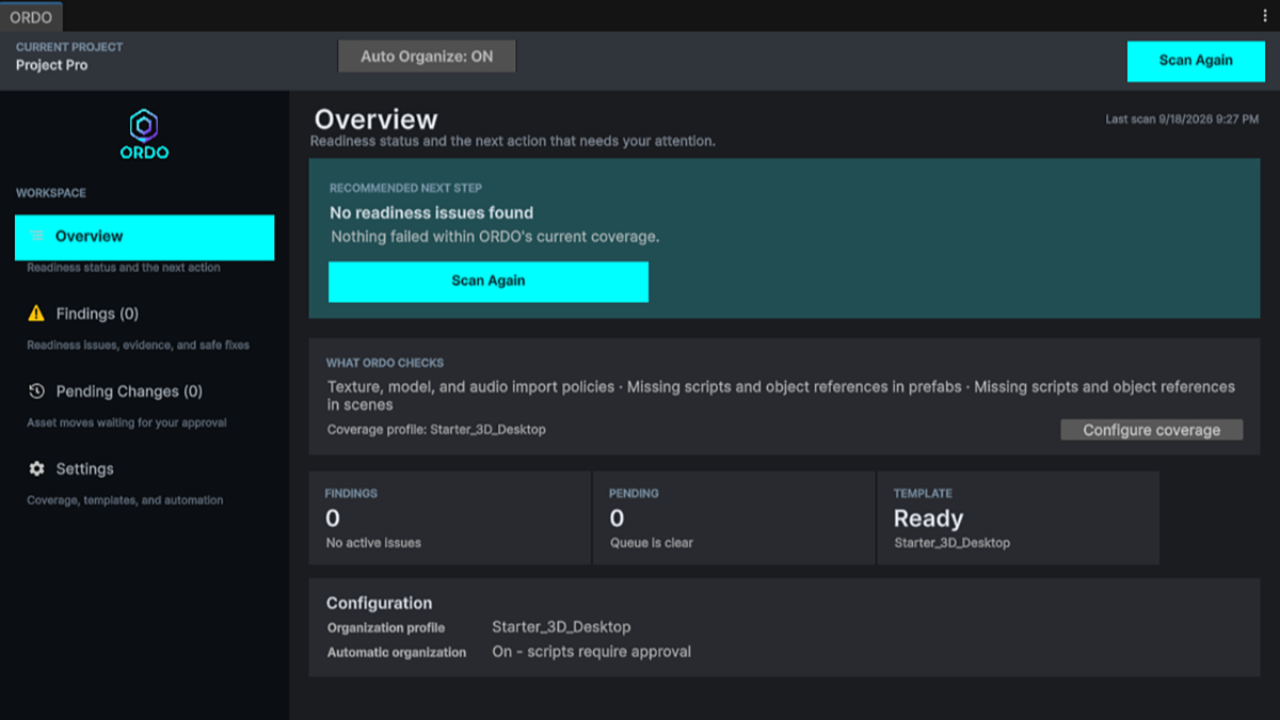
If you've worked on a Unity project for more than a few months, you've seen it: the "referenced script is missing" warning in the Console, a prefab that worked last week suddenly throwing errors, textures that came in at 4K with mipmaps on, and an Assets folder where nothing is quite where you'd look for it. None of it is dramatic. It just piles up quietly until a build breaks right when you wanted to ship.
ORDO is the tool I built to stop that. It keeps your project organized automatically, applies the right import settings the moment assets land, and scans your prefabs and scenes for missing scripts and broken references, telling you exactly what's wrong and how to fix it. And when your project grows past just you, it keeps the whole team on the same rules.
In this post
- Why Unity projects drift, even on good teams
- One policy file your whole team shares (and ORDO keeps in sync)
- Organization that enforces itself, with approval where it matters
- Import policies for textures, models, and audio
- Findings: discovering and resolving real project issues
- Headless scans for your build server
- Getting started in five minutes
The real problem isn't messy folders. It's rules that live in someone's head.
Most teams have conventions. "UI sprites go in Art/UI." "Environment textures get mipmaps." "Mobile builds cap textures at 1024." "Don't leave Read/Write on for models." The trouble is that those conventions usually exist as tribal knowledge, a wiki page nobody opens, or one lead who fixes things by hand every Friday.
Unity doesn't know about any of it. It will happily import a 4K UI texture with mipmaps on, drop it wherever it lands, and let a teammate's machine run completely different settings from yours. Nothing breaks immediately. It just compounds, until a build is bloated, a scene throws errors on someone else's machine, or a release candidate turns up a prefab with a missing script.
ORDO turns your team's conventions into something the Unity Editor can actually read, enforce, and check.
What ORDO is
ORDO is an Editor-only tool for Unity (no runtime components, nothing ships in your game). You open it from Tools > ORDO > Open ORDO, and everything lives in one window with four views:
- Overview: project status, last scan, active template, automation state, and always one clear "next recommended action."
- Findings: real health issues, each with severity, the exact target, evidence, a remediation, and a way to verify the fix.
- Pending Changes: exact asset moves waiting for your approval, checked before anything happens.
- Settings: your template, folder rules, import policies, exceptions, and the shareable team policy file.
One policy, every machine: synchronized team rules
This is the feature that makes ORDO a team tool instead of a personal one. Under Settings › Shareable policy file, one click on Export Policy File... writes your folder rules, per-folder import policies, and enforcement setting into a single JSON file, ProjectSettings/ORDO.policy.json by default. You commit it to your repo like any other project setting.
Here's what makes it work well in practice:
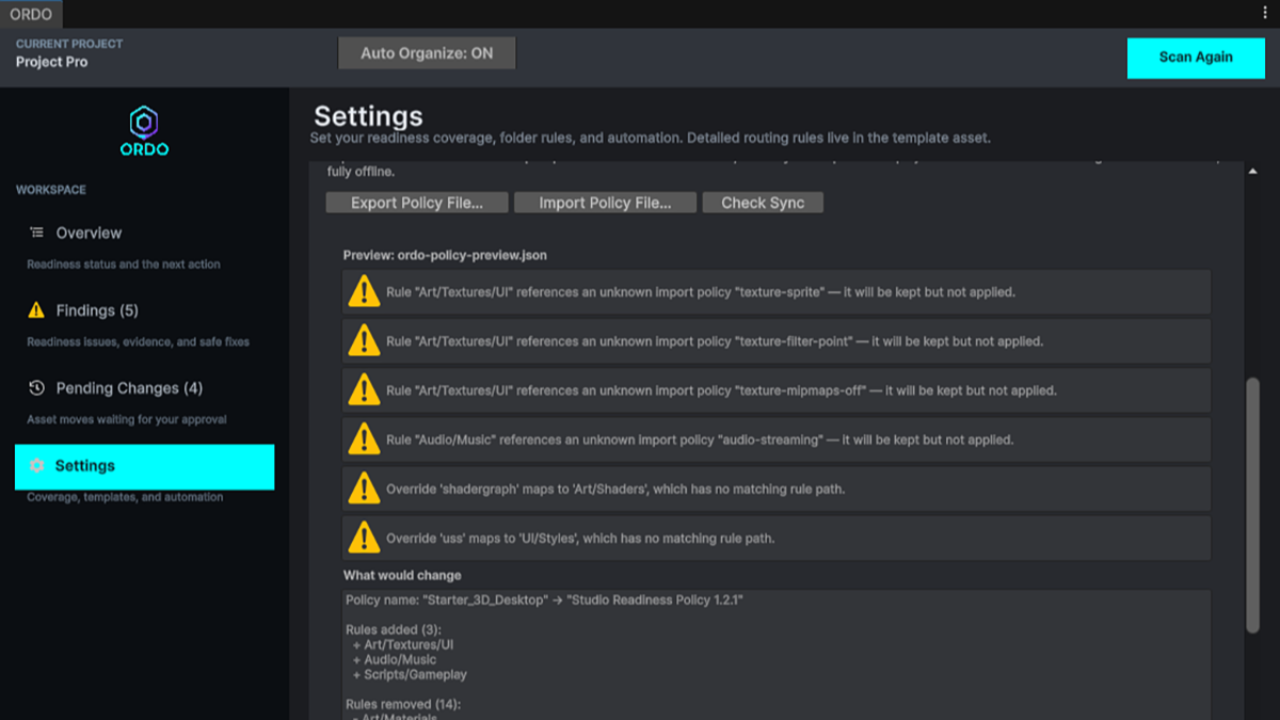
- Review before apply. When a teammate runs Import Policy File..., ORDO shows exactly what would change: rules added, removed, or modified, and whether enforcement flips on or off. Nothing changes until they click Apply This Policy.
- Automatic drift detection. Open ORDO in a project with a committed policy and it checks whether your local configuration still matches. If it's drifted, you get a dismissible notice with a Review button. Check Sync runs the same check anytime. It never blocks your work.
- Pull-request friendly. The file contains no GUIDs and no machine-specific paths, so policy changes read cleanly in code review. Changing a team convention becomes a reviewable diff instead of a Slack message.
- Offline, no account. Export and import work entirely locally. No sign-up, no server, no seat licensing dashboard.
Onboarding a new team member stops being "read this doc and try to remember it." They pull the repo, open ORDO, apply the policy, and their editor now enforces the same rules as everyone else's.
Organization that enforces itself
ORDO's organization is driven by a template: a set of folder rules that say where each kind of asset belongs. You can start from one of seven built-in starters (3D Desktop, 2D Sprites/UI, Mobile Lightweight, WebGL, Console, VR, and AR Foundation), edit one, or build your own. Create Project Folders scaffolds the structure without touching existing files, and Validate Template catches mistakes in your rules.
From there, you choose how hands-on you want to be:
- Auto Organize on: new imports and scan results move straight to their configured destination.
- Auto Organize off: nothing moves on its own. A scan queues misplaced assets in Pending Changes for you to approve.
- Require Approval for Scripts: script moves always wait for approval, so you never get a surprise recompile mid-session.
Pending Changes is built to be trustworthy. Before applying a batch, ORDO preflights every move (the source still exists, the destination is valid, the move can proceed) and then reports what was applied, what failed, and what was never attempted. Failed moves leave the original asset exactly where it was.
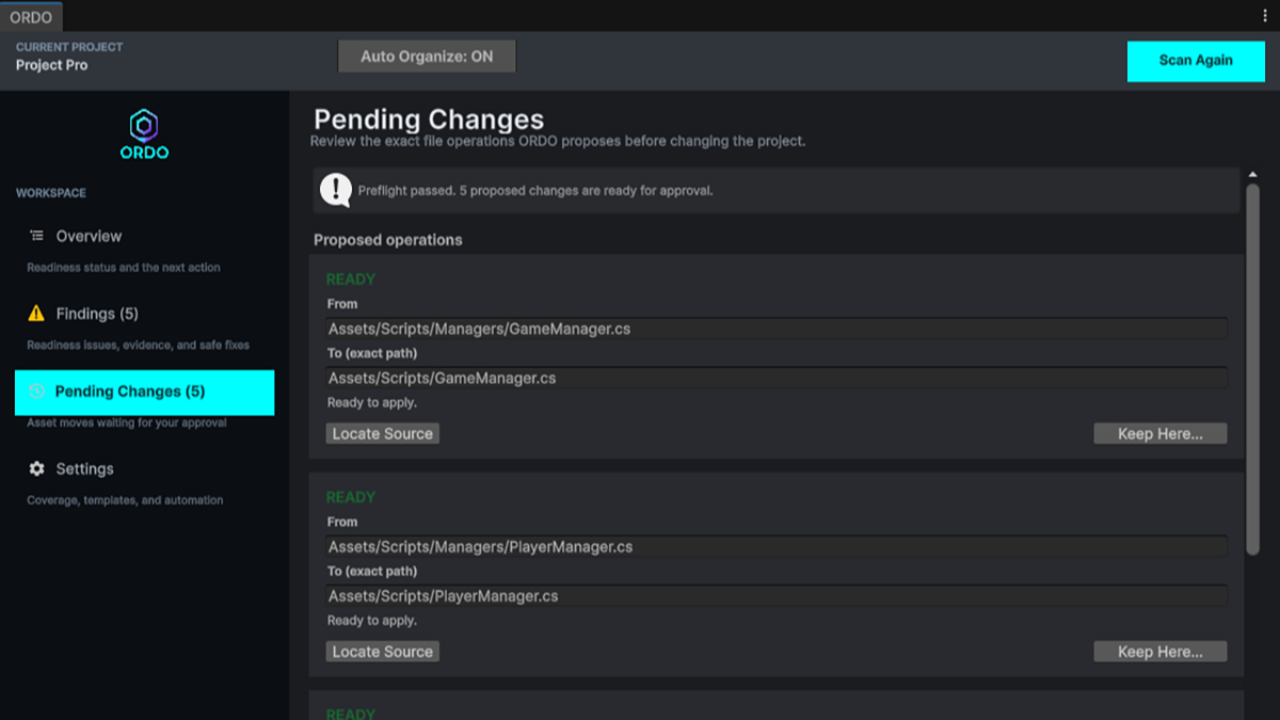
And because real projects always have exceptions, every pending item has a Keep Here... option with three scopes:
- Only this asset (tracked by GUID, so it survives renames)
- Same extension (leave that file type alone project-wide)
- Source folder (exclude a whole folder, like a third-party asset pack, recursively)
Exceptions are visible in Settings and removable anytime, so "why didn't this move?" always has an answer.
Import policies: correct settings from the moment an asset lands
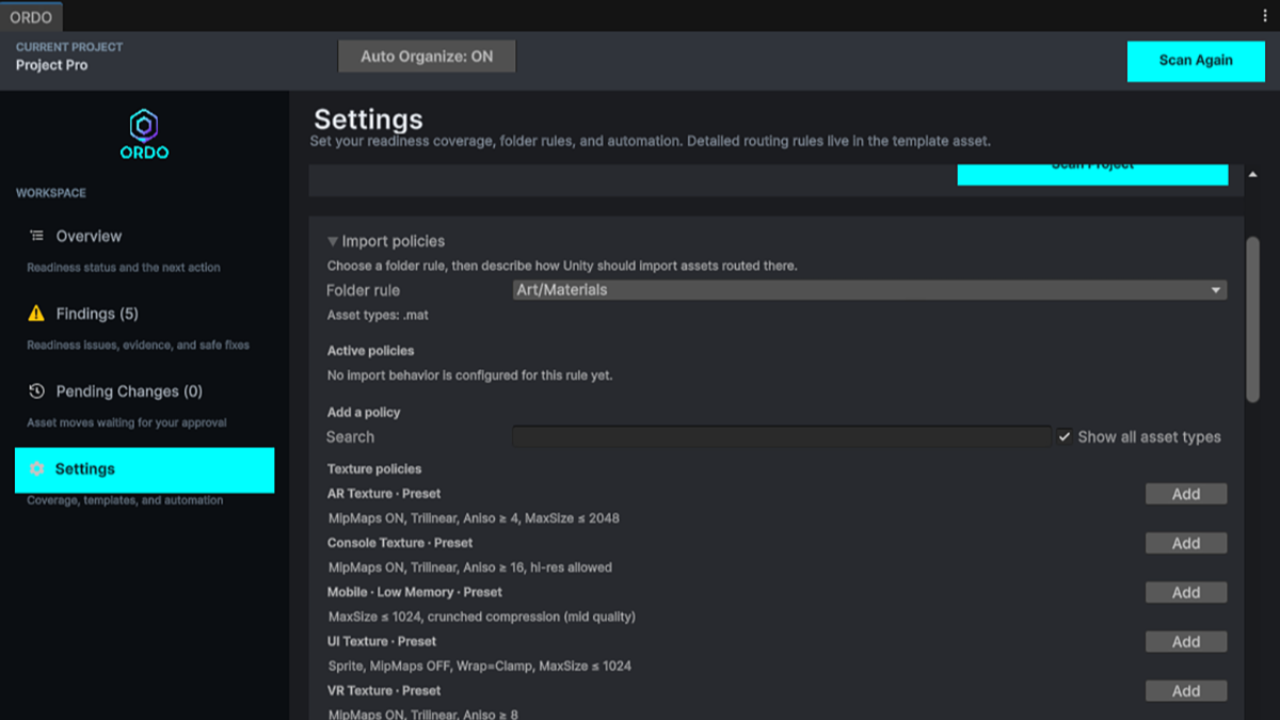
Folder rules don't just decide where assets go. Each rule can carry import policies that decide how they're imported. With Apply Import Policies on (the default), textures, models, and audio get the right settings automatically as they come in:
| Textures | UI vs. world presets, mipmaps, point/trilinear filtering, anisotropy, max size and crunch compression for low-memory mobile, plus platform presets for VR, AR, console, and WebGL |
| Models | Read/Write on or off, global scale 1.0, mesh compression level, and rig type (none, generic, humanoid) |
| Audio | Load type (stream, decompress on load, compressed in memory), PCM/Vorbis/ADPCM, force to mono, ambisonic, and quality band |
You pick these from a searchable list of friendly policy names in Settings. Conflicting policies replace each other safely, so you can't accidentally ask for "mipmaps on" and "mipmaps off" on the same folder. Already have a project full of assets? Apply Import Policies Now reconciles the whole backlog in one pass.
Findings: discover and resolve real project issues
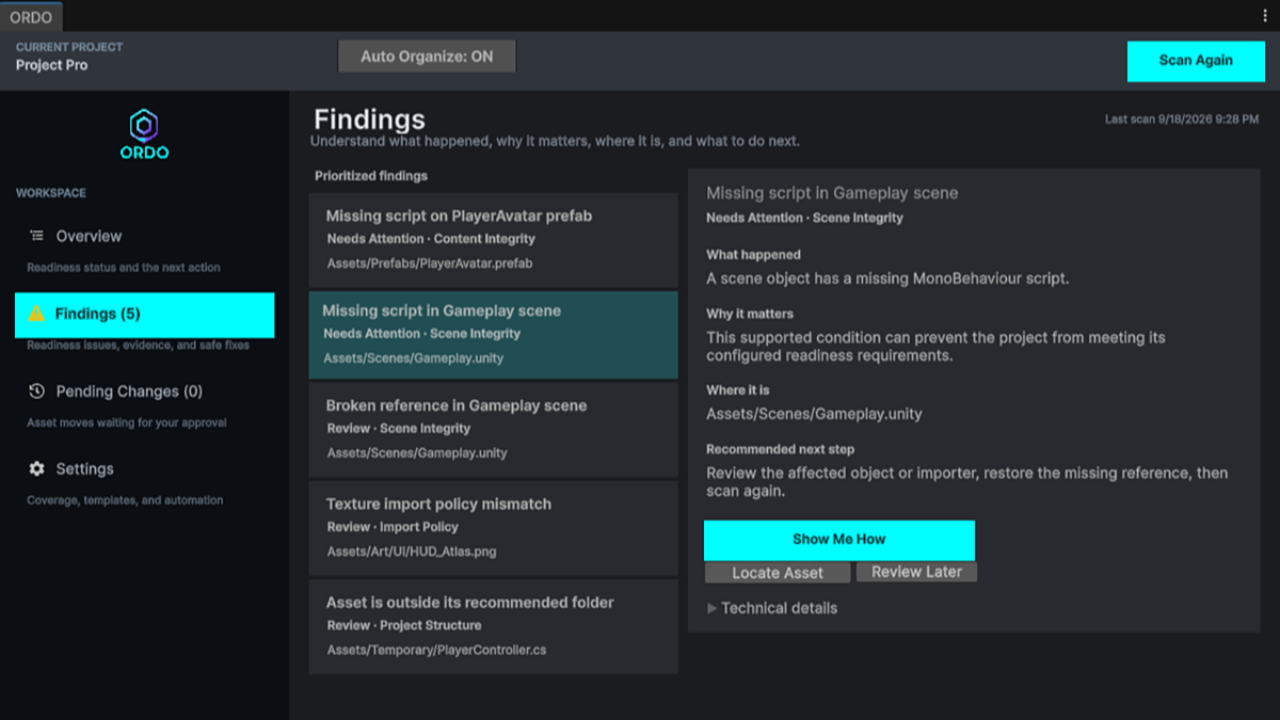
Run Scan Project and ORDO evaluates your project against its readiness checks, then routes you straight to whatever matters most. Each finding tells you what's wrong, where, how bad it is, and what to do about it.
- Missing scripts on prefabs (Blocking): components whose MonoBehaviour no longer exists.
- Missing object references (Warning): serialized fields that were assigned but now point at something deleted. Fields that were always empty aren't flagged, so you're not buried in noise.
- Scene Integrity: the same missing-script and missing-reference checks for scene objects, grouped separately so you can see scene health at a glance.
- Import-policy drift: textures, models, or audio that someone changed by hand after import so they no longer match their folder's policy.
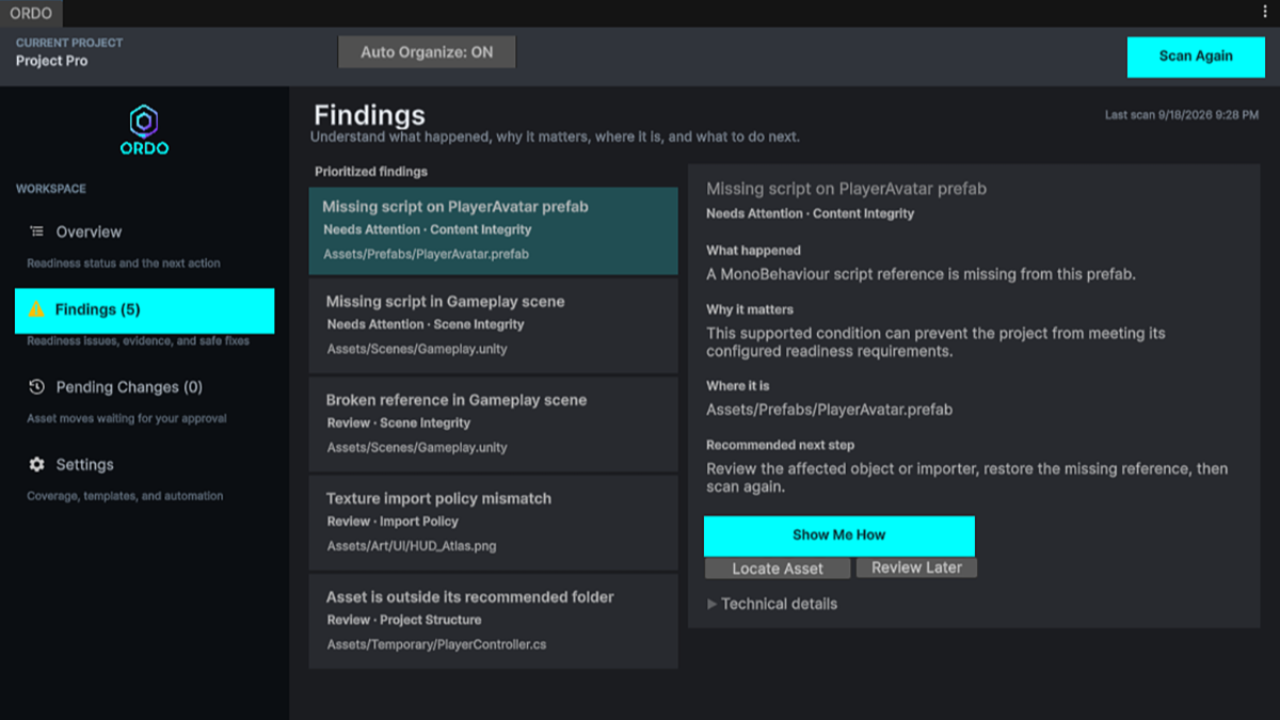
Resolution is deliberately careful. Import-policy fixes are confirmation-gated: ORDO rereads the current state, changes only the property in question, reimports, and asks you to rescan to verify. For missing scripts and references, ORDO guides you to the exact object but never strips components or reassigns fields for you, because silently "fixing" serialized data is how projects get worse.
Honest results, by design
If ORDO can't fully check something (a scene with unsaved changes, say, or an asset that fails to load), it reports partial coverage or an evaluation error instead of showing a misleading "all clear." A clean result means the checks ORDO shows are clean. That's a promise you can actually rely on before a milestone build.
Put readiness checks in your build pipeline
Team rules only stick if they're checked where everyone's work meets: the build. ORDO can run its readiness scan headless from the command line, which makes it easy to drop into a build server or a pre-release script:
<unity> -batchmode -quit -logFile - -projectPath <project> \
-executeMethod Faktory.ordo.OrdoCli.Scan \
[-ordoReport <path>] [-ordoFailOn blocking|warning|none]
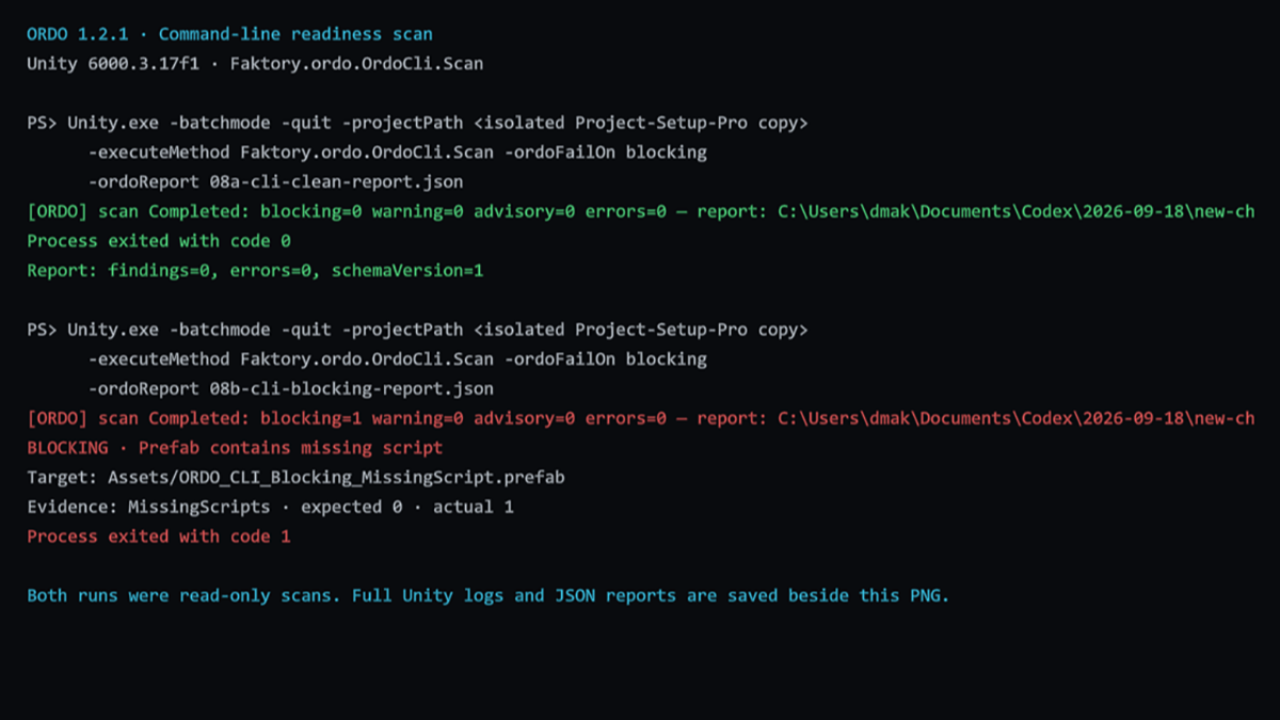
- Read-only: it never moves assets, changes importers, or saves scenes.
- Structured JSON report: the same report the Editor produces, ready to archive or parse.
- Meaningful exit codes:
0clean,1a finding at or above your threshold,2the scan couldn't check everything,3ORDO itself errored. Fail the build on Blocking issues only, on Warnings too, or just report.
That means a missing script on a prefab gets caught by CI on the pull request, not by a tester the night before a release.
Built to be safe on projects you care about
- Scan never deletes files. Ever.
- Version-control aware: if ORDO can't detect version control, it reminds you to commit or back up before scanning or applying moves. Add .gitignore writes Unity's recommended
.gitignorein one click. - Leaves Unity's scaffolding alone: template files like
Assets/TutorialInfoare never touched. - Editor-only: zero runtime footprint, nothing added to your builds.
- Useful even without setup: with no template configured, ORDO still checks prefabs and scenes for missing scripts and references.
Who ORDO is for
- Small studios and indie teams who want shared conventions without a dedicated tech-art or build engineer policing them.
- Solo developers juggling multiple projects who want every new project set up right and kept right.
- Game jam teams, classrooms, and bootcamps where several people touch one project fast and nobody has time to clean up after each other.
- Anyone approaching a release or a big Unity upgrade who wants a readiness pass they can trust before the build goes out.
Getting started takes about five minutes
- Commit or back up your project, then import ORDO.
- Open Tools > ORDO > Open ORDO and install a starter template (or pick your own).
- Click Create Project Folders, choose your Auto Organize and script-approval settings, and run your first Scan Project.
- Work through Findings and Pending Changes. Overview always tells you the next step.
- Export your policy file, commit it, and have your team apply it.
ORDO also includes a small Organization Demo sample so you can try approval-gated moves and automatic organization on a throwaway texture before pointing it at your real project.
Give your team one set of rules and a project that stays ready.
Shared policies, self-enforcing organization, import policies, readiness Findings, and CI scans in one Editor tool.
Get ORDO on the Unity Asset StoreQuestions, feature requests, or a project ORDO should be catching more in? Reach out. ORDO is built and supported by me directly, and real team workflows drive what gets added next.
Join the Local Space Newsletter
Weekly Unity dev tips, tools, and short lessons to help you build faster and ship real projects.
We hate SPAM. We will never sell your information, for any reason.