How to Find and Fix Missing Scripts in Unity (Prefabs, Scenes, and Why They Happen)
Oct 04, 2026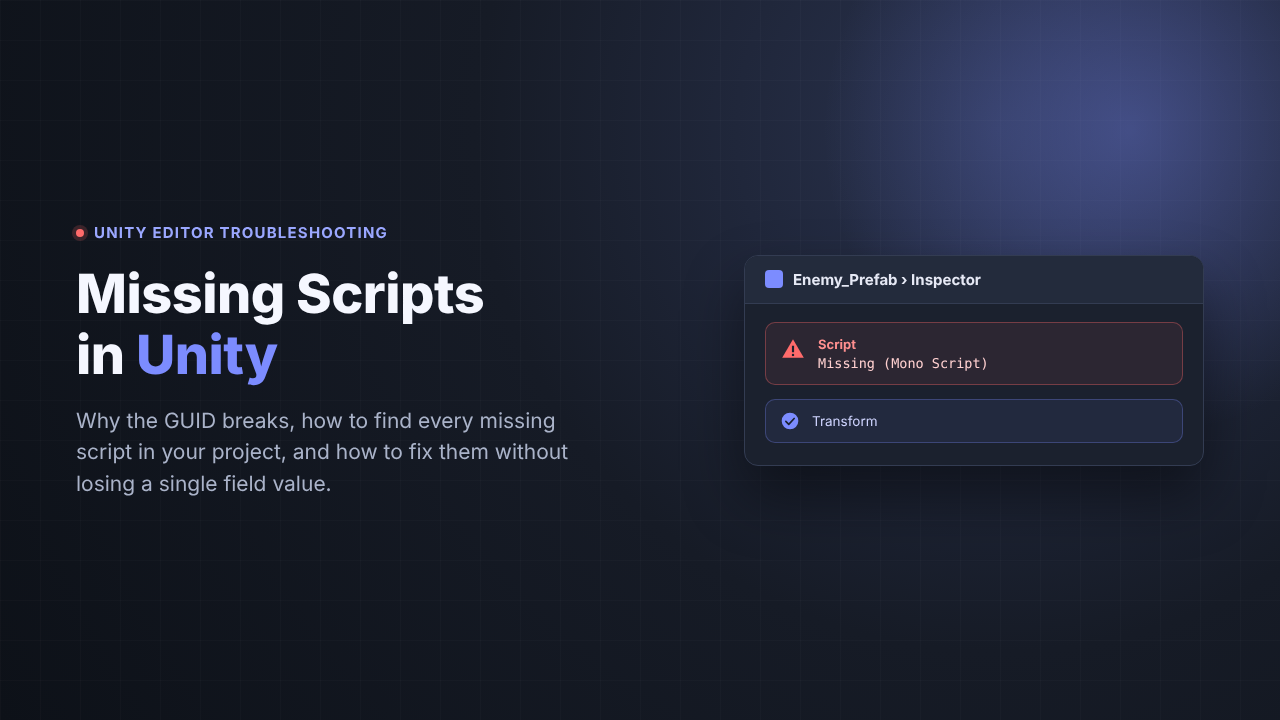
You open a scene and the Console fills with "The referenced script on this Behaviour is missing!" You click a prefab and the Inspector shows a component that just says Script: Missing (Mono Script). Nothing obvious changed. This is one of the most common problems in Unity, and it's almost always fixable, often without losing any data. Here's why it happens, how to find every missing script in your project, and how to fix them the right way.
In this post
- What a "missing script" actually is
- The 5 most common causes
- How to find every missing script (prefabs and scenes)
- How to fix them, from safest to last resort
- How to stop it from happening again
- Catching them automatically
What a "missing script" actually is
When you add a script to a GameObject, Unity doesn't save the script's name. It saves the script's GUID: a unique ID stored in the script's .meta file (the small file Unity creates next to every asset). Your scene or prefab file basically says "this object has a component whose script is GUID a1b2c3..., and here are its saved field values."
A missing script means Unity looked up that GUID and couldn't load a matching script class. The important part: the component's saved data is usually still there. Unity just doesn't know what code it belongs to anymore. That's why the best fixes reconnect the GUID instead of deleting the component.
What you'll see
Console: "The referenced script (Unknown) on this Behaviour is missing!" or "The referenced script on this Behaviour (Game Object 'Enemy') is missing!"
Inspector: a component showing Script: Missing (Mono Script) with a note that the associated script can't be loaded.
The 5 most common causes
- The script's .meta file was lost or regenerated. This is the big one, especially on teams. If a script is renamed or moved outside Unity (in Explorer, Finder, or your IDE) without its
.meta, or a teammate commits the.csfile but not the.meta, Unity generates a brand-new GUID. The script still exists, but every reference to the old GUID is now broken. - The script was deleted. Someone removed a "dead" script that was still attached to a prefab or scene object somewhere.
- The class name doesn't match the file name. For MonoBehaviours and ScriptableObjects, Unity expects
PlayerControllerto live inPlayerController.cs. Rename the class but not the file (or the other way around) and Unity can't load it. - Compile errors. If your project has compile errors, Unity can't load new or changed script classes, and components can show as missing until the errors are fixed. Always check the Console for red errors first.
- A package or asset was removed. Prefabs from an asset pack or package that depended on scripts you no longer have installed (or imported without their code) will show missing scripts.
How to find every missing script
Unity only warns you about missing scripts when something is loaded, so a broken prefab you haven't opened in months stays invisible until it's instantiated at runtime. To find all of them, you need to search the whole project. Here's a small editor script that does it. Put it in any folder named Editor (for example Assets/Editor/FindMissingScripts.cs):
using UnityEditor;
using UnityEngine;
using UnityEngine.SceneManagement;

public static class FindMissingScripts
{
    [MenuItem("Tools/Missing Scripts/Find In All Prefabs")]
    static void FindInPrefabs()
    {
        int total = 0;
        foreach (string guid in AssetDatabase.FindAssets("t:Prefab"))
        {
            string path = AssetDatabase.GUIDToAssetPath(guid);
            GameObject root = AssetDatabase.LoadAssetAtPath<GameObject>(path);
            if (root == null) continue;

            foreach (Transform t in root.GetComponentsInChildren<Transform>(true))
            {
                int count = GameObjectUtility.GetMonoBehavioursWithMissingScriptCount(t.gameObject);
                if (count > 0)
                {
                    total += count;
                    Debug.LogWarning($"{path}: '{t.name}' has {count} missing script(s)", root);
                }
            }
        }
        Debug.Log($"Prefab scan complete. Missing scripts found: {total}");
    }

    [MenuItem("Tools/Missing Scripts/Find In Open Scenes")]
    static void FindInOpenScenes()
    {
        int total = 0;
        for (int i = 0; i < SceneManager.sceneCount; i++)
        {
            Scene scene = SceneManager.GetSceneAt(i);
            if (!scene.isLoaded) continue;

            foreach (GameObject rootObj in scene.GetRootGameObjects())
                foreach (Transform t in rootObj.GetComponentsInChildren<Transform>(true))
                {
                    int count = GameObjectUtility.GetMonoBehavioursWithMissingScriptCount(t.gameObject);
                    if (count > 0)
                    {
                        total += count;
                        Debug.LogWarning($"{scene.name}: '{t.name}' has {count} missing script(s)", t.gameObject);
                    }
                }
        }
        Debug.Log($"Scene scan complete. Missing scripts found: {total}");
    }
}
Run it from Tools > Missing Scripts. Click any warning in the Console to ping the prefab or object it came from. Two notes:
- A nested prefab with a missing script will be reported in its own prefab and in every prefab that contains it. Fix the innermost one first and the rest usually clear.
- The scene version only checks scenes that are currently open. Open each scene (or load them additively) to check them all.
How to fix them, from safest to last resort
Commit or back up your project before you start. Then work through these in order:
1. Fix compile errors first
If the Console has any red errors, fix those and let Unity recompile. A surprising number of "missing" scripts come back on their own at this step.
2. Restore the original .meta file from version control
This is the best fix when a script was renamed, moved, or recommitted without its .meta. Look through your history for the script's old .meta file (in Git, git log --all -- "**/PlayerController.cs.meta" is a good start) and restore it next to the script. Once the original GUID is back, every scene and prefab reconnects automatically, with all saved field values intact. If the script itself was deleted, restore both the .cs and its .meta.
3. Make the class name match the file name
Open the script and check that the class name exactly matches the file name, including capitalization. Fix whichever one is wrong and let Unity recompile.
4. Reassign the script by hand
If the old GUID is gone for good, select the object, and drag the correct script from the Project window onto the missing component's Script field in the Inspector. Unity keeps the saved data, so fields whose names still match will usually get their old values back. On a prefab, do this in the prefab asset (not an instance) so the fix applies everywhere.
5. Remove the component (last resort)
If the script is truly gone and nothing needs it, remove the missing component. You can do it by hand (the component's ⋮ menu › Remove Component), or in bulk for selected prefabs with this editor helper:
[MenuItem("Tools/Missing Scripts/Remove From Selected Prefabs")]
static void RemoveFromSelectedPrefabs()
{
    foreach (Object obj in Selection.objects)
    {
        string path = AssetDatabase.GetAssetPath(obj);
        if (!path.EndsWith(".prefab")) continue;

        GameObject root = PrefabUtility.LoadPrefabContents(path);
        int removed = 0;
        foreach (Transform t in root.GetComponentsInChildren<Transform>(true))
            removed += GameObjectUtility.RemoveMonoBehavioursWithMissingScript(t.gameObject);

        if (removed > 0) PrefabUtility.SaveAsPrefabAsset(root, path);
        PrefabUtility.UnloadPrefabContents(root);
        Debug.Log($"{path}: removed {removed} missing script(s)");
    }
}
Add it inside the same FindMissingScripts class. Be careful: removal throws away that component's saved data permanently, which is exactly why it's the last step, not the first. For nested prefabs, fix the source prefab rather than the parent that contains it.
How to stop it from happening again
- Always commit .meta files. Every
.cschange should travel with its.meta. A good Unity.gitignoreignoresLibrary/andTemp/, never.metafiles. - Rename and move scripts inside Unity. Doing it in the Project window keeps the
.metawith the file. If your IDE renames the file, make sure the.metamoved too. - Keep class names and file names in sync whenever you rename.
- Use Visible Meta Files and Force Text serialization (Project Settings › Editor). They're the defaults in modern Unity, but older projects sometimes still have other settings.
- Check before you merge or ship. Missing scripts are cheap to fix the day they happen and expensive to track down months later.
Catching them automatically
The scripts above work, but they only help when you remember to run them, and they don't catch the missing script's close cousin: missing references, where a field that used to point at an object now shows Missing because the target was deleted.
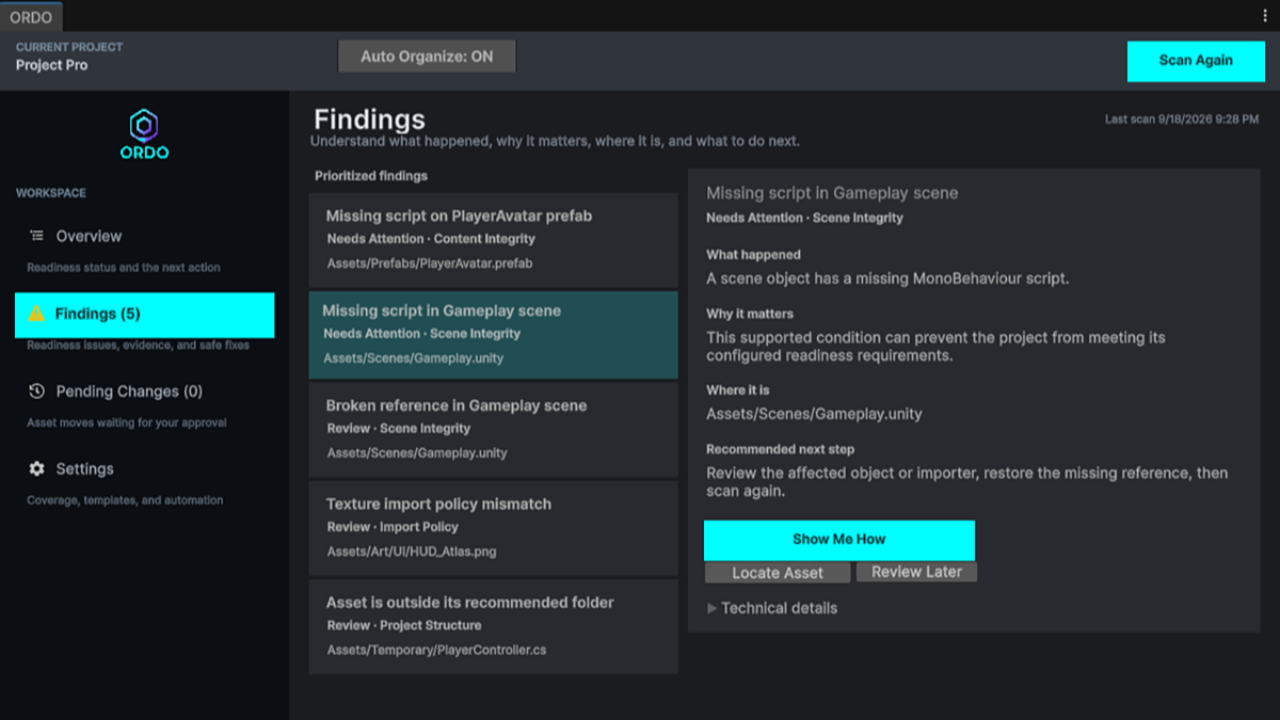
That's part of why I built ORDO, an Editor tool for keeping Unity projects clean. One Scan Project checks every prefab and your scenes for:
- Missing scripts on prefabs and scene objects, flagged as Blocking
- Missing object references, flagged as Warnings (fields that were always empty aren't reported, so there's no noise)
Each finding points to the exact object, explains the problem, and tells you how to fix it. And following the same philosophy as this post, ORDO never strips components or reassigns fields for you. It gets you to the problem fast and lets you choose the safe fix.
It also runs headless from the command line, so your build server can fail a build when a missing script sneaks in, before it ever reaches a tester.
Find every missing script in one scan.
ORDO checks prefabs and scenes for missing scripts and broken references, and keeps your project organized while it's at it.
Get ORDO on the Unity Asset StoreWhether you use the scripts above or ORDO, the rule is the same: reconnect first, remove last, and commit your .meta files.
Join the Local Space Newsletter
Weekly Unity dev tips, tools, and short lessons to help you build faster and ship real projects.
We hate SPAM. We will never sell your information, for any reason.